How-tos
Enrolling a new device
Required materials and infrastructure
- Customer WiFi SSID and password
- MDA2 devices
- Mobile WiFi hotspot with internet connection (e.g. smartphone)
- Flashlight (e.g. smartphone)
Requirements
Before starting the enrollment/configuration of the MDA2 devices, all requirements must be fulfilled.
Configuration target settings
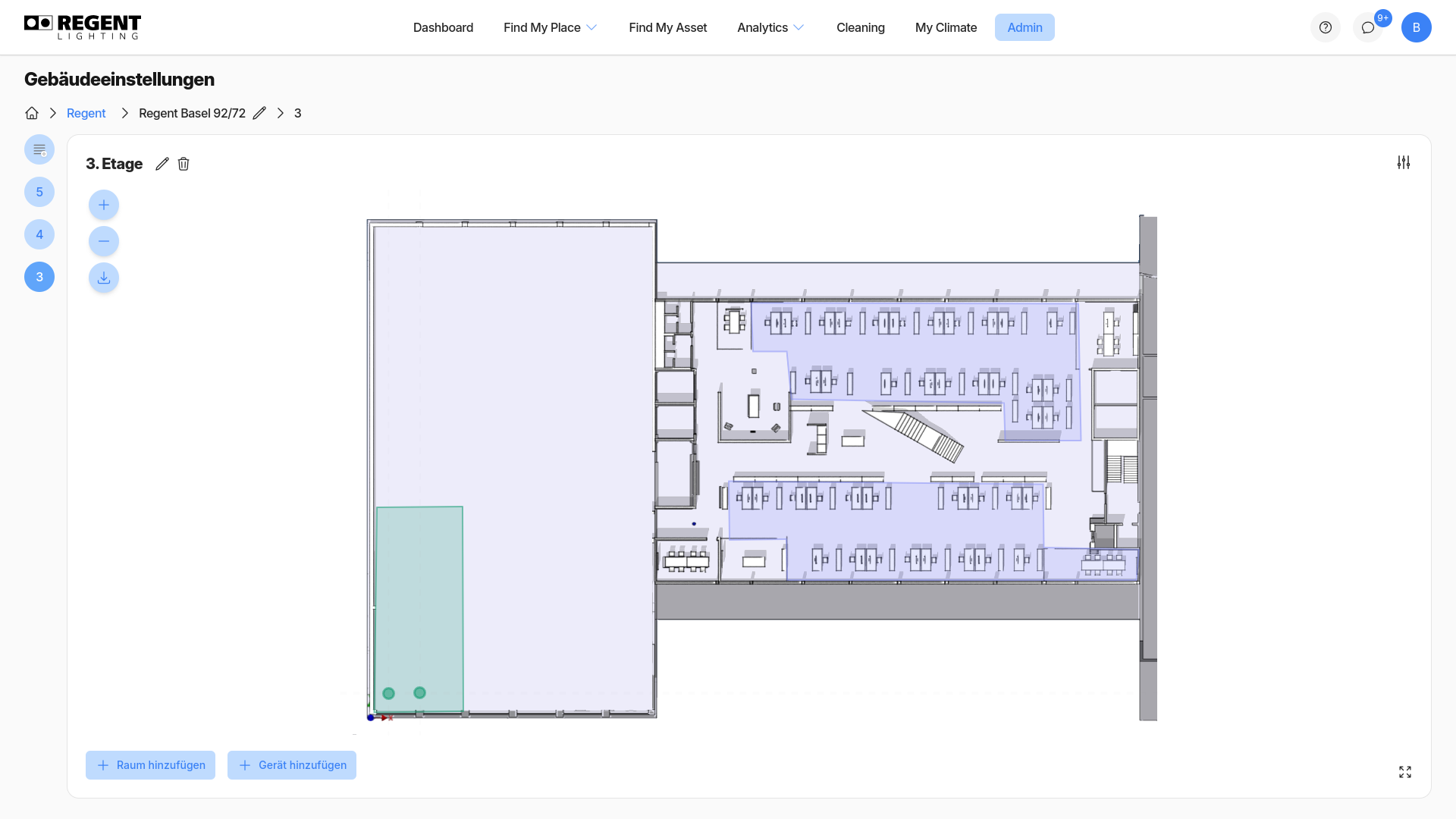
- In order to configure the target WiFi settings, go to the
Adminview of your organization. - Click
Add devicein the bottom left corner. - Click
Enroll new devicesin the sidebar. - Click the gear icon
 in the sidebar to configure the target WiFi settings.
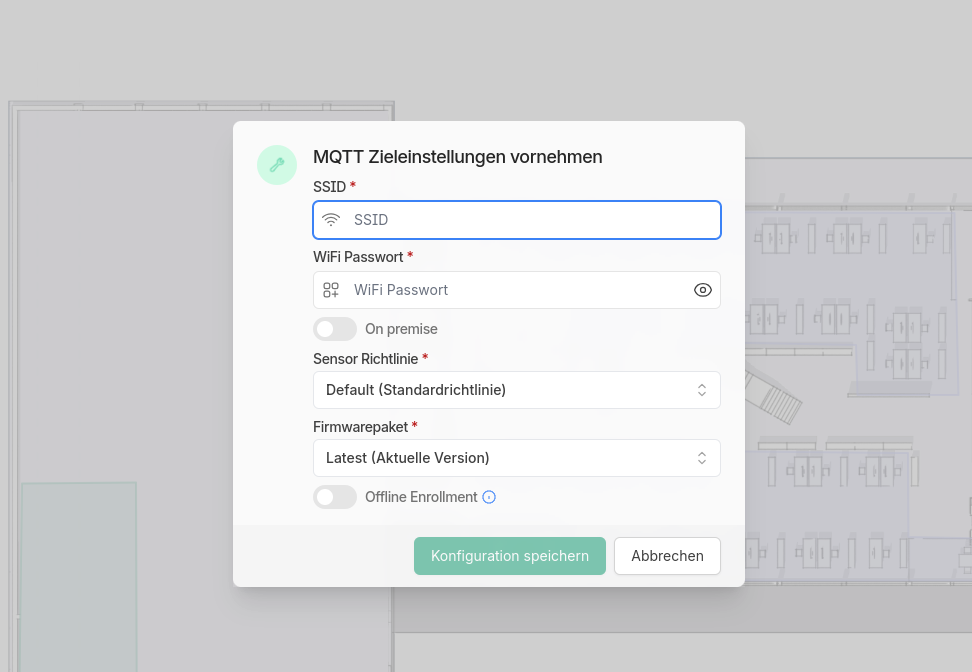
-
Enter the SSID and password of the customer WiFi with which the devices should connect.
tipIf the WiFi network does not exist or is not available the offline enrollment can be activated.
-
The configuration of an on-premises installation should only be used if the requirements have been clarified in advance.
-
The other settings should be adopted.
-
Save the setting with 'Save configuration'.
Creating a mobile WiFi hotspot with internet connection
To make the first connection of an MDA2 device to regent.cloud, a mobile WiFi hotspot with internet connection is required.
- Click on the WiFi Symbol
 to see the configuration data
for your mobile hotspot. These settings must be followed exactly.
to see the configuration data
for your mobile hotspot. These settings must be followed exactly.
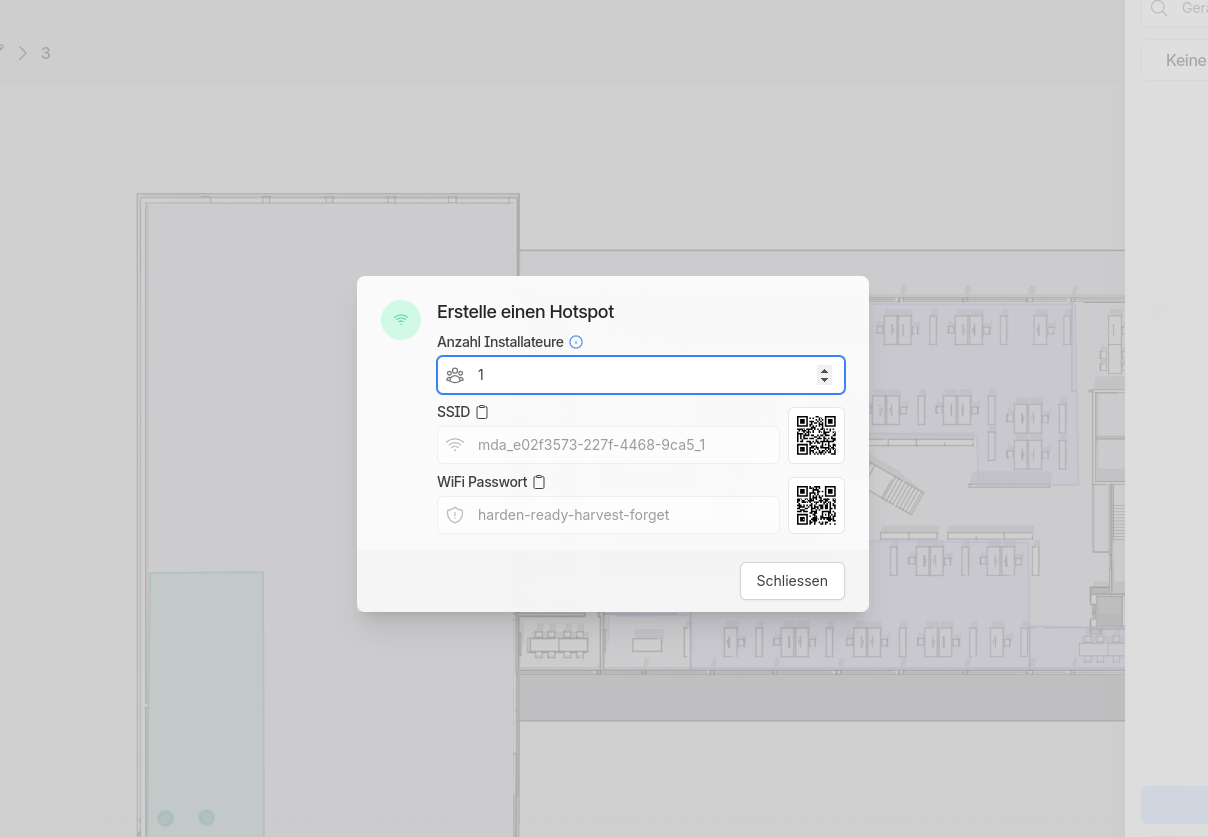
- Create a mobile hotspot (2.4GHz) with the given SSID and WiFi password. Use the QR code to copy the SSID and password to avoid typing errors.
Any iOS or Android smartphone can be used as a mobile WiFi hotspot with an internet connection. Dedicated devices are available under the term MiFi router (mobile WiFi router).
- iOS
- Android
- Set SSID: Go to Settings -> General -> Info.
- Set password hotspot: Go to Settings -> Personal hotspot -> WLAN password
- Set SSID: Go to Settings -> Networks & Internet -> Hotspot -> Personal Hotspot.
- Set password hotspot: Go to Settings -> Networks & Internet ->Hotspot & tethering -> Wifi Hotspot.
Settings location may differ depending on the Android version
- If there are several installers who carry out the registration process for the same organization, a unique SSID must be selected for each installer. For this purpose, the number of installers can be increased and one SSID can be assigned to one installer. The MDA2 device will later be visible with the corresponding ID (last digit in the SSID).
The WiFi hotspot must have a bandwidth of 2.4 GHz. Otherwise the MDA2 device cannot connect cannot connect to the hotspot.
When using a smartphone, this must also be configured in the settings:
- iOS
- Android
Settings -> Personal hotspot -> Maximize compatibility (switch on).
Android: Settings -> Networks & Internet -> Hotspot & Tethering -> Wi-Fi hotspot -> Band for access point (2.4GHz)
Settings location may differ depending on the Android version
- An MDA2 device will only connect to the WiFi hotspot if the signal quality (RSSI) is very good. For this purpose, the maximum distance of 30 cm between the MDA2 device and the mobile WiFi hotspot should not be exceeded.
- The MDA2 device can now be set to WiFi scan mode.
Activate scan mode
- Neo
To initiate the WiFi connection setup, shine a flashlight or smartphone light into one of the two brightness sensors. The status LED changes to blue as soon as the connection is established.
Are you having trouble establishing a connection? When shining the light into one of the sensors, try covering the second sensor so that little or no light can enter.
- If the status LED lights up orange, the light has successfully connected to the mobile WiFi hotspot.
- If the status LED lights up red, the light could not connect to the hotspot.
- If the MDA2 device has successfully connected to the mobile WiFi hotspot, it will be listed in the sidebar at the bottom right.
- The ID behind the MAC address refers to the installer who is currently writing in.
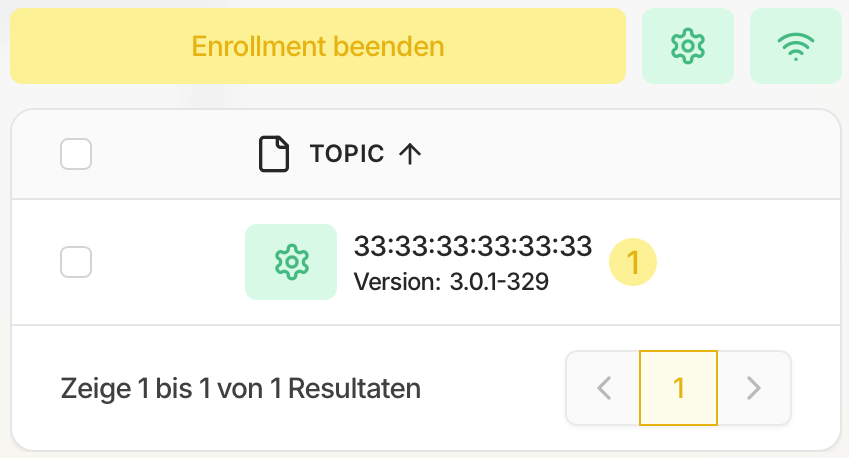
- Click on the
 icon to send the configurations to the device.
 - The device now connects to the configured WiFi network (target settings). Once the connection has been successfully established, the device is listed under Available Devices.
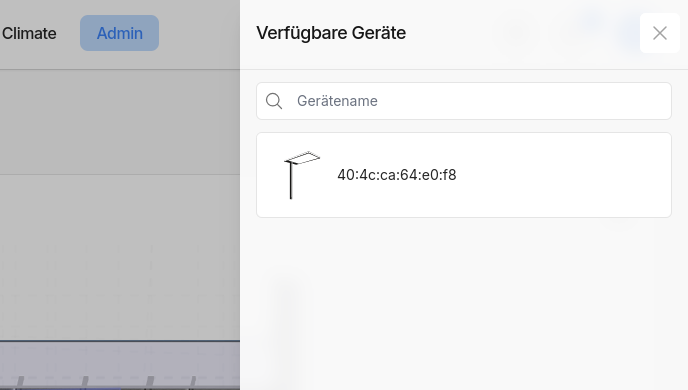
- The device can now be placed on the map.
Congratulations! You have just added a new device to your organization!